Sprite Sheet Maker. Your frames, ready to play.
Combine PNG, JPG or WebP animation frames into a sprite sheet in your browser. Arrange their order, choose columns, padding and spacing, preview playback, then download a transparent PNG and matching JSON atlas. Your selected files stay on your device. No account, payment or watermark.
- Local processing
- No sign-up
- No watermark
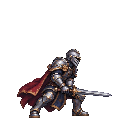
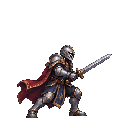




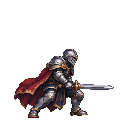
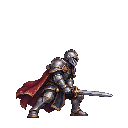
Choose your images or load the sample to begin.
| Input | PNG, JPG or WebP; 20 MB per file, 64 MB per selection |
|---|---|
| Frames | 1–256; combined source budget: 32,000,000 pixels |
| Frame cells | Largest source width and height; smaller frames centered without scaling |
| Layout | 1–256 columns; rows calculated from frame count |
| Outer padding | 0–64 px |
| Frame spacing | 0–64 px |
| Export | PNG sprite sheet, JSON atlas, or ZIP with import instructions |
| Output size | 8192 px per axis; 32,000,000 pixels |
Check the illustrated PNG-frame example: source frames, finished PNG, matching JSON, or follow the guide. Phaser loads the atlas; Unity and Godot use their own slicing workflow.

How to check that your artwork stays local
- Open your browser’s Network panel and clear its request list after the page loads.
- Choose a non-sensitive test image or GIF in the matching tool, change the layout, and export it.
- Inspect any new requests: selected artwork should not be sent in a request body. Page assets and consented analytics are separate from artwork processing.
This is a check you can repeat, not an independent security audit or a promise of offline availability. Save your exports before leaving the page.
From frames to game-ready files
The real workspace. Three simple steps.
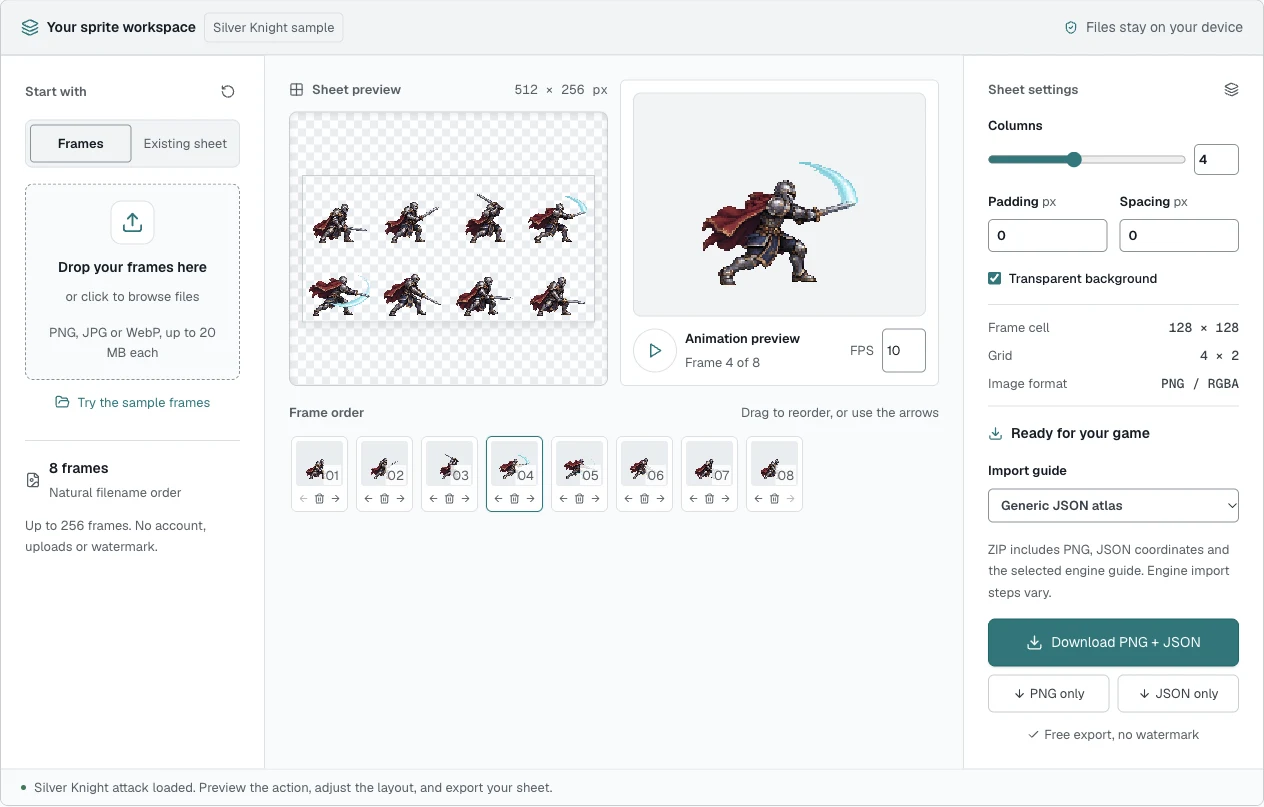
01Start with your frames
Drop in your images, or try the knight attack cycle already loaded in the workspace.
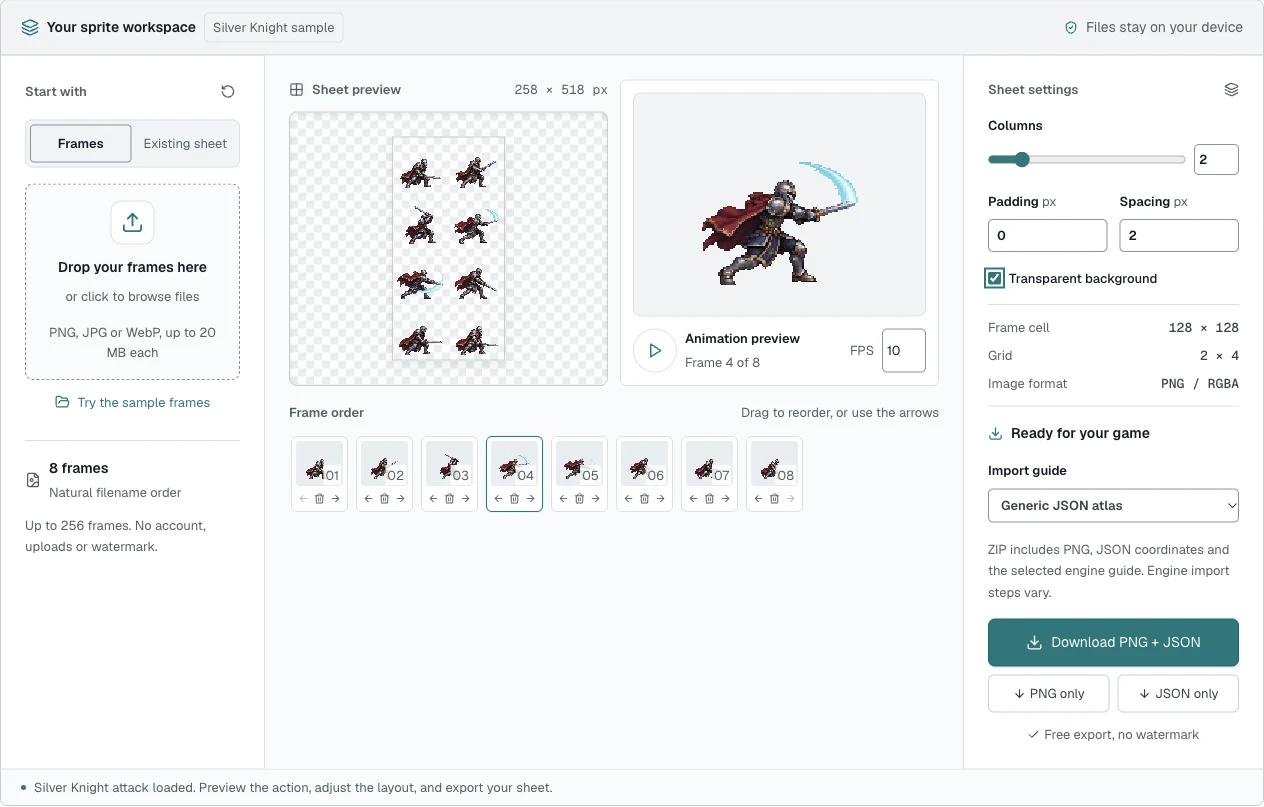
02Make the layout yours
Change columns and spacing. The PNG preview and frame coordinates update together.
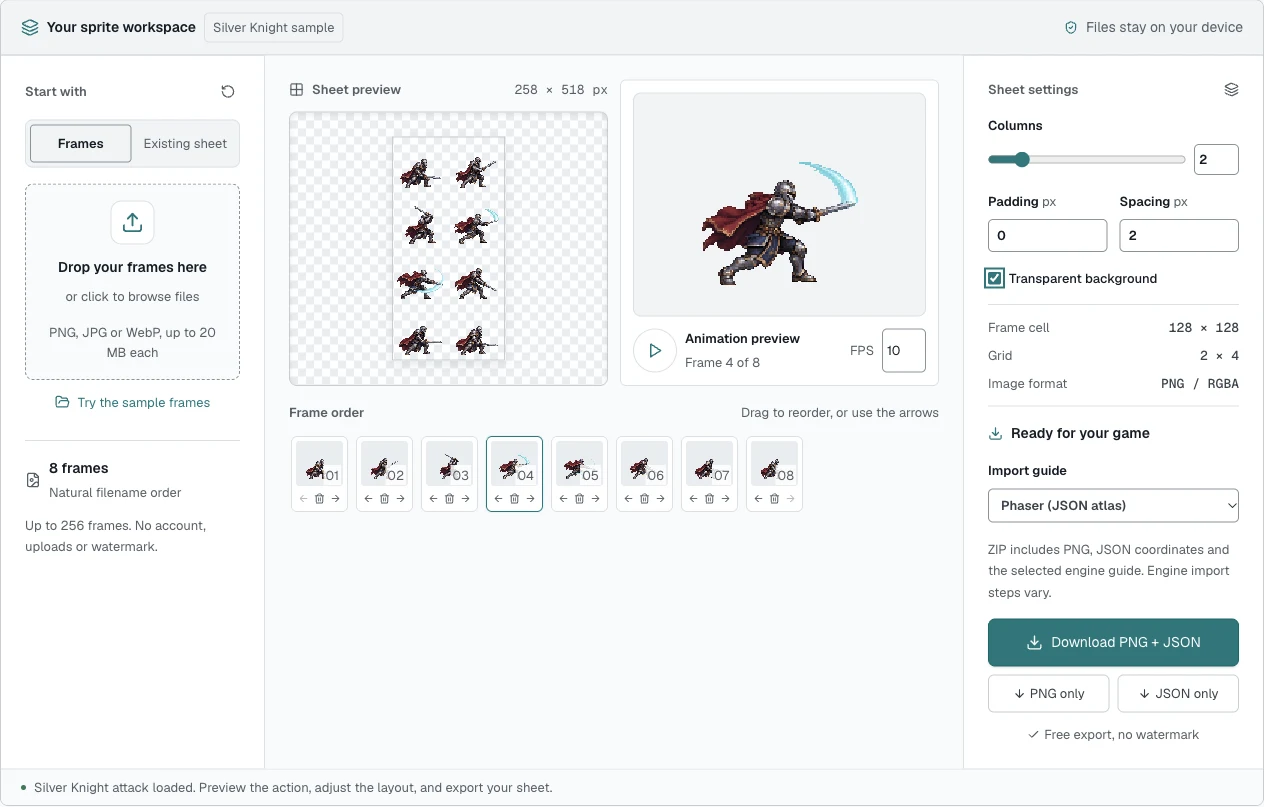
03Take it into your game
Choose your engine guide, then download the matching PNG and JSON in one ZIP.
How the Sprite Sheet Maker Works
Upload Your Frames
Drop your PNG, JPG, or WebP frames into the workbench. Start with a bundled sample if you want to try the workflow first. Your files are decoded locally; they are never sent to a server. Keep each pose on the same-size canvas for predictable alignment.
Arrange Columns, Order and Spacing
Move frames into playback order, then choose the number of columns. Padding adds a border around the sheet; spacing adds a gap between cells. The preview and exported coordinates update together, so the atlas describes the image you actually download.
Preview and Export
Play the sequence and change the preview frame rate. Keep the background transparent or choose a solid color. Download the PNG, JSON coordinates, or an export ZIP with both files and instructions for your selected engine.
Sprite Sheet Generator Options
Columns and Frame Order
The sequence reads left to right, then top to bottom. Reorder frames before exporting; your animation preview uses that same order. Fewer columns create a taller sheet. More columns create a wider one. Empty cells in the last row stay empty.
Padding, Spacing and Gaps
Use padding for the outer border and spacing between frames. Neither setting stretches your artwork. When re-editing an existing sheet, you can detect gaps between frames if the image contains fully transparent separator rows and columns. Use a manual grid when those separators are absent.
Background and Transparency
Transparent PNG output preserves the alpha channel of your source frames. JPG inputs are opaque; changing the sheet background does not remove their original background. Use nearest-neighbor scaling in your engine when you want pixel art to stay crisp.
Re-Edit an Existing Spritesheet
Open an existing sheet in the workbench, define its rows and columns, and re-arrange its poses into a new layout. Match the original cell dimensions and preview the sequence before you export. This is useful when your engine needs a different number of columns or additional spacing.
Export Transparent PNG + JSON Atlas
The PNG holds your artwork; the atlas records each frame’s rectangle in pixels. Frame names are made unique so two files with the same name cannot overwrite each other in the JSON. Uniform cells keep animation origins consistent, with smaller source frames centered inside their cells.
The export ZIP includes the image, JSON, and an engine-specific import guide. JSON coordinates match the padding and spacing in the downloaded PNG. Playback FPS is a preview setting; use the same rate when configuring an animation in your engine.
"frame-01.png": {
  "frame": { "x": 0, "y": 0, "w": 48, "h": 48 },
  "rotated": false,
  "trimmed": false
}
Import Into Unity, Godot, GameMaker and Phaser
One sheet, different import workflows. Phaser can read the JSON atlas. The other presets include instructions for importing and defining regions from the PNG; they do not install an editor plugin.
Unity
Import the PNG as a Sprite (2D and UI), set Sprite Mode to Multiple, and choose a consistent Pixels Per Unit value. In Sprite Editor, define the regions using the exported cell dimensions and gaps. Apply the slices, select the frames in order, and create an animation clip.
Godot
Load the PNG as a texture. For a uniform sheet without gaps, use AnimatedSprite2D → SpriteFrames → Add frames from a sprite sheet, then choose matching horizontal and vertical counts. For padded sheets, use explicit AtlasTexture regions from the JSON coordinates.
GameMaker
Create a sprite and import the PNG through the sprite editor’s strip workflow. Match the cell width, height, offsets, and spacing to your export. Check the number and order of subimages, then set the origin consistently and choose the playback speed.
Phaser
Choose the Phaser export preset, put the PNG and JSON in your assets directory, and load both with this.load.atlas. Use the exact frame names in the JSON when creating an animation. The atlas uses unrotated, untrimmed rectangular frames.
Why Use a Browser-Based Sprite Sheet Creator
The workbench runs on your device. Adding a frame does not upload it, and exporting does not require an account. Files are held in the current tab, with no cloud project or automatic save. Keep a copy of your export before closing or refreshing the page.
The current tools are free and add no watermark. You keep the rights you already have to your inputs; combining someone else’s artwork does not grant a new license.
Sprite Sheet Maker FAQ
What is a sprite sheet?
A sprite sheet is one image containing multiple sprites or animation frames. Your game uses rectangles within that image to draw each pose. Combining artwork can reduce separate image requests, though actual rendering performance depends on the engine.
How do I make a sprite sheet from PNG frames?
Add the PNGs, put them in playback order, and set the columns and spacing. Preview the sequence, then download the sheet and atlas. The step-by-step guide below explains the complete workflow.
What image formats can I use?
The maker accepts PNG, JPG, and WebP. PNG and WebP can contain transparency; JPG cannot. Exports from the maker are PNG so existing transparent pixels are preserved.
What size should my sprite sheet be?
Choose a layout that fits your engine’s texture limit. The width is columns × cell width, plus spaces between columns and padding on both sides; height follows the same rule. You do not have to use power-of-two dimensions for every engine, so check your target platform.
Do my images get uploaded to a server?
No. Your browser reads the selected files and makes the sheet locally. We do not send source images or exported sprites to an image API. This tab is temporary storage, so download your work before refreshing or closing it.
Can I import the exported sheet into Unity, Godot, GameMaker or Phaser?
Yes, using each engine’s own import workflow. Phaser supports the included JSON atlas directly. Unity, Godot, and GameMaker can use the PNG and its cell or region coordinates; the export preset includes the relevant instructions.
Can I use a sprite sheet I already have?
Yes. Open an existing sheet, define its grid or detect transparent gaps, then rearrange the frames. For individual PNG downloads instead of a new combined sheet, use the sprite sheet splitter.
Is it free? Do I need an account?
The current sprite sheet maker is free, needs no account, and adds no watermark. Processing happens on your device. There is no purchase or registration step before exporting.